> For the complete documentation index, see [llms.txt](https://docs.msquared.io/llms.txt). Markdown versions of documentation pages are available by appending `.md` to page URLs; this page is available as [Markdown](https://docs.msquared.io/admins/access-control.md).
# Access Control
Admins control who can do what within a metaverse using **access groups**. Each access group has a template (e.g. Admin, Developer, Event Runner) and a list of users.
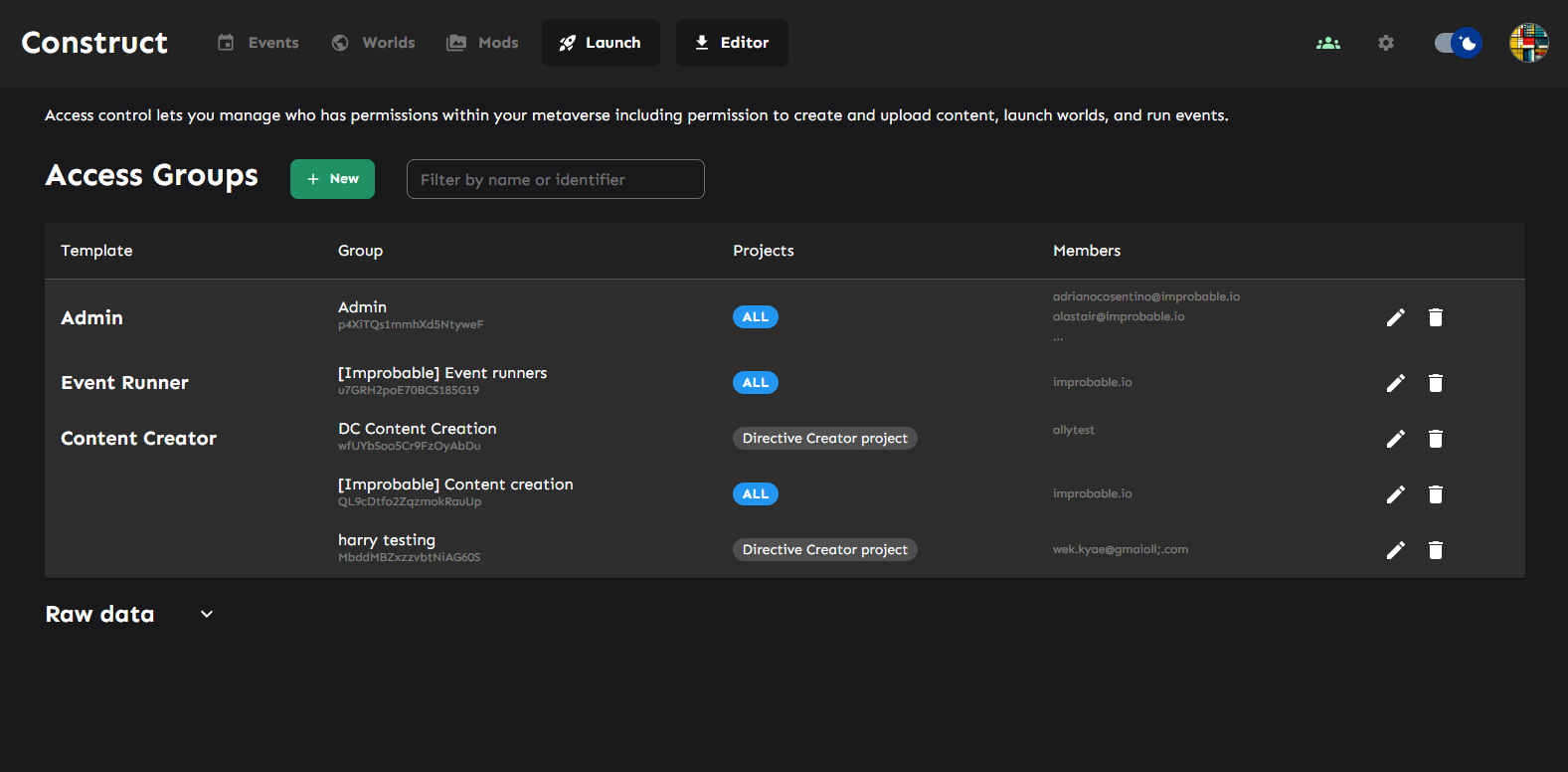
Access groups can be managed via the  icon in the top of the dashboard.
Add new access groups, and view/edit existing access groups
## Templates
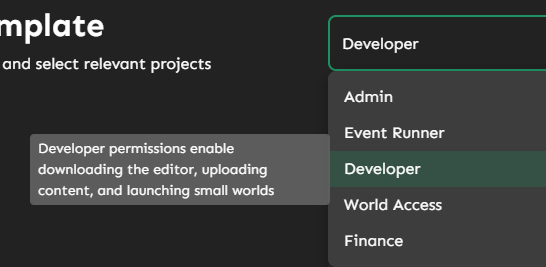
Templates are effectively named lists of permissions that describe common workflows, e.g. an admin, a developer, someone who runs events. These are lists we can change over time, if there's not a template that fits your use case - let us know!
You can see what each template group means via the new access group modal
## Adding a new access group
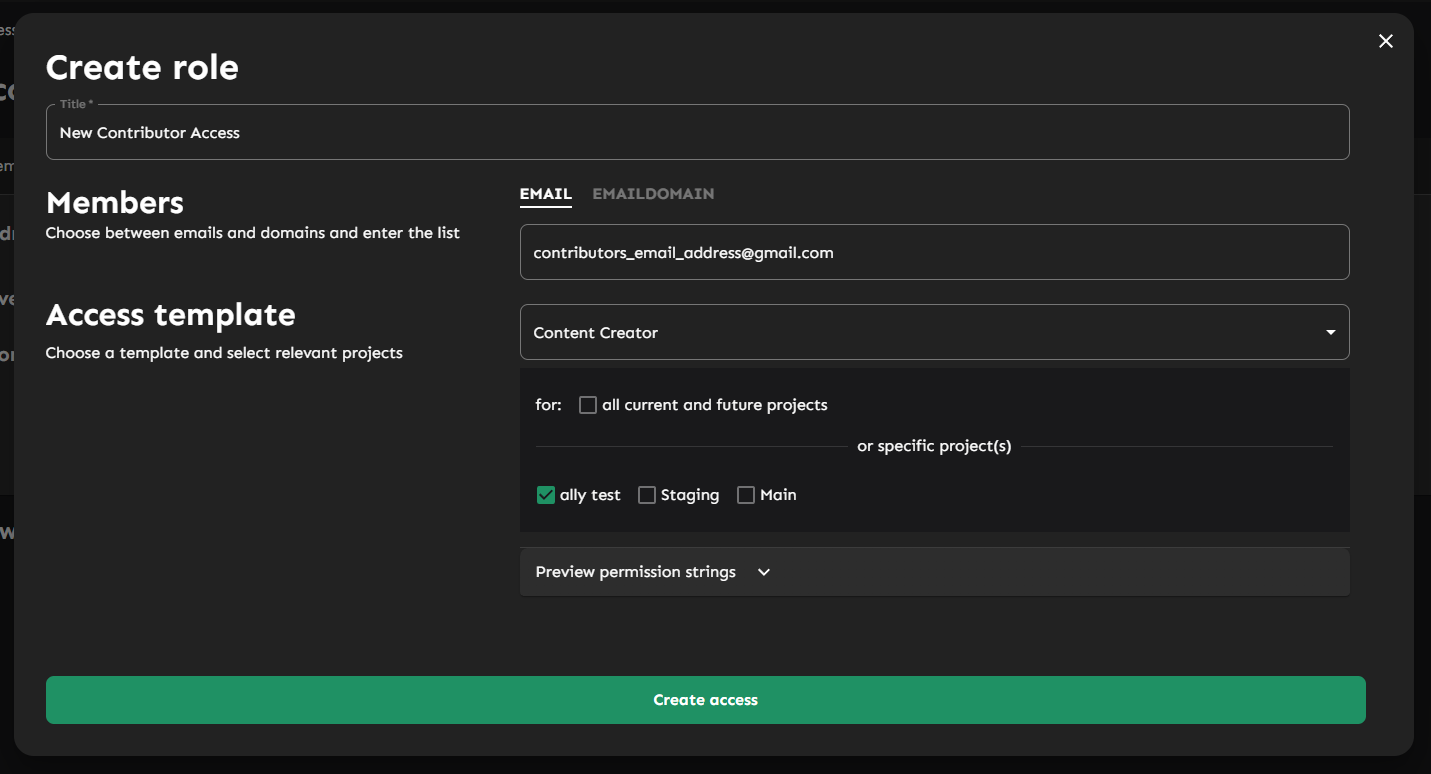
Click the `+ New` button to add a new access group to display the following modal.
Create a role screen
1. Pick a name - this can be arbitrary and changed whenever\\
2. Fill out the `Members` field with who're your looking to grant access to (you can select the `Email Domain` tab to grant access for a whole company) - this can also be changed whenever\\
3. Select from the `Access template` drop-down ( e.g. `Content Creator`, `Event Runner`, etc) to control what your users can do - you can hover each list item to see what it does\
\
For templates like developer and event runner, you'll also need to select project(s)
{% hint style="info" %}
**What are Projects?**
Projects let you make separates groups of content and worlds within your metaverse which can be extremely useful if have different teams working within your metaverse.
See the [Projects](/admins/settings/projects.md) page for more information.
{% endhint %}
After submitting, the page should refresh, and you should see the new access group row.
The above user would now be able to download the editor, upload content, and launch worlds within the `ally test` project.
You can click the :pencil2: button to modify the access group name and add/remove users.
{% hint style="info" %}
You can also invite others to join your world directly from the access groups section in the worlds page. See the [Inviting others to a world](/creation/worlds/invite-players.md) page for more information.
{% endhint %}