> For the complete documentation index, see [llms.txt](https://docs.msquared.io/llms.txt). Markdown versions of documentation pages are available by appending `.md` to page URLs; this page is available as [Markdown](https://docs.msquared.io/creation/running-events/failover.md).
# Failover
How to set up a backup deployment in case of server issues
## Introduction
In the rare case of unexpected server failure/crash during your event, it is highly recommended for projects to also run a backup deployment/server. This guide will guide you through the process of setting up a 2nd deployment, and the steps required to reconnect all users from your error-state world to the new one.
## Setting up your Failover World
After setting up your main world, spin up a 2nd world with all of the same configurations (you can name it `FAILOVER [same-name-as-main-world]` for clarity on the dashboard). Please check these settings before launching:
* **Matching Mod and Content version**
* **World Scale and Duration** (if running a large world, you must set the failover world to also be large in order to handle the same capacity of users)
* **Access Groups and Settings** (you may want to set this as non-public until you need to run a failover).
* **Streaming Settings** (launch mode should match the main world)
If you require any internal configurations to be done, please reach out to your support engineer who will configure this for you.
## Setting LiveConfig on your Main World
For your **Failover World**, you need to retrieve these 2 values in order to redirect users to the backup world:
1. **World ID**
2. **Deployment ID**
1. For this value, please reach out to your **Support Engineer**, as this value is only accessible through internal tooling
{% hint style="warning" %}
If your uproject is currently using **V37** or older, you will also need to obtain a `LaunchContextID` for the failover world. Please speak to your **Support Engineer** if you do not know how to access this value.
* In the below steps, you will need to additionally set **OverrideLaunchContextId**
{% endhint %}
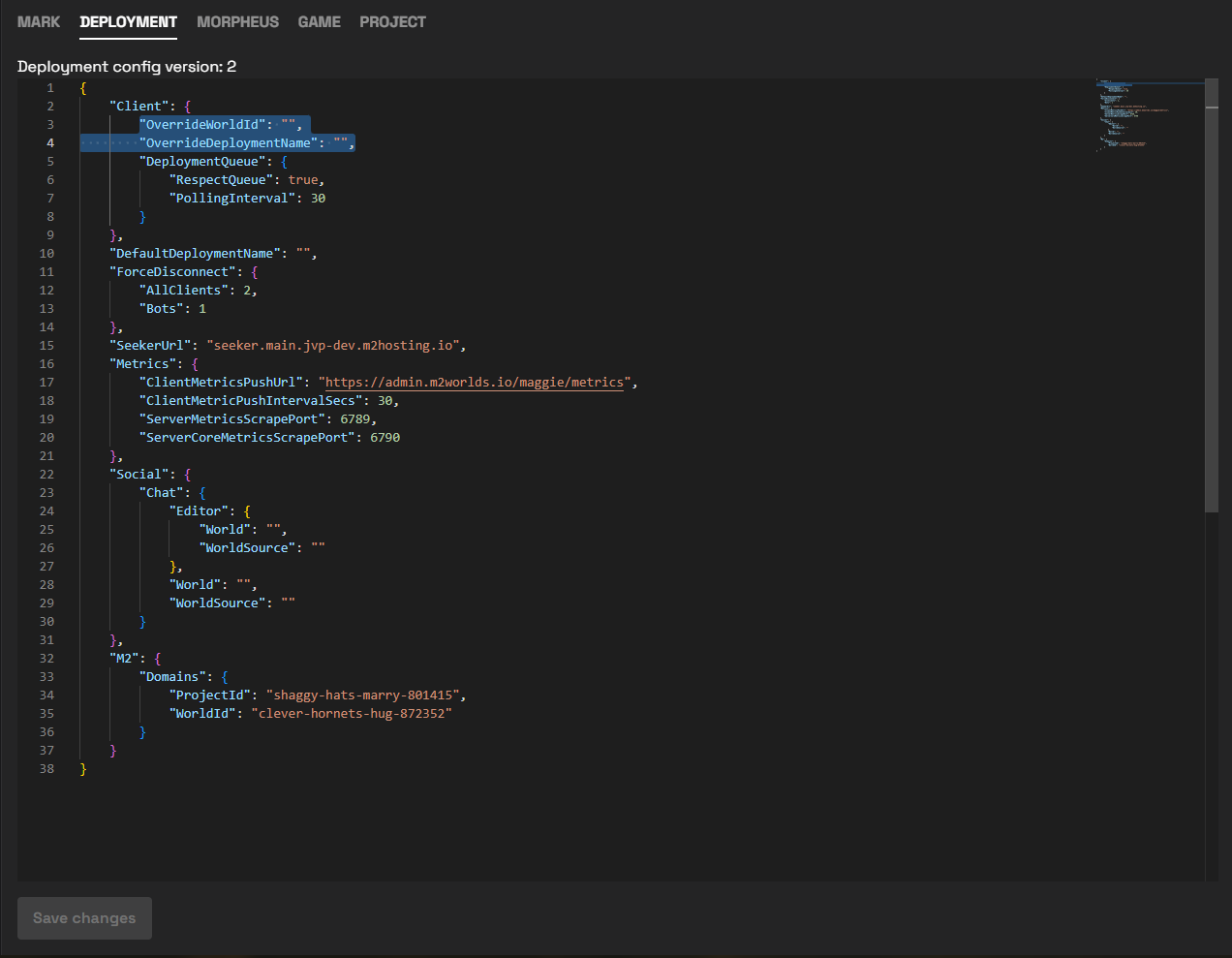
When you need to trigger failover to your backup world, go to your **main world's live config settings**:
Fill in this section with the values retrieved, and click "`Save Changes`".
{% hint style="warning" %}
**Do not save these values until you need to failover into your backup world**! Once these values are saved, anyone joining your main world will be redirected into the backup world automatically.
{% endhint %}
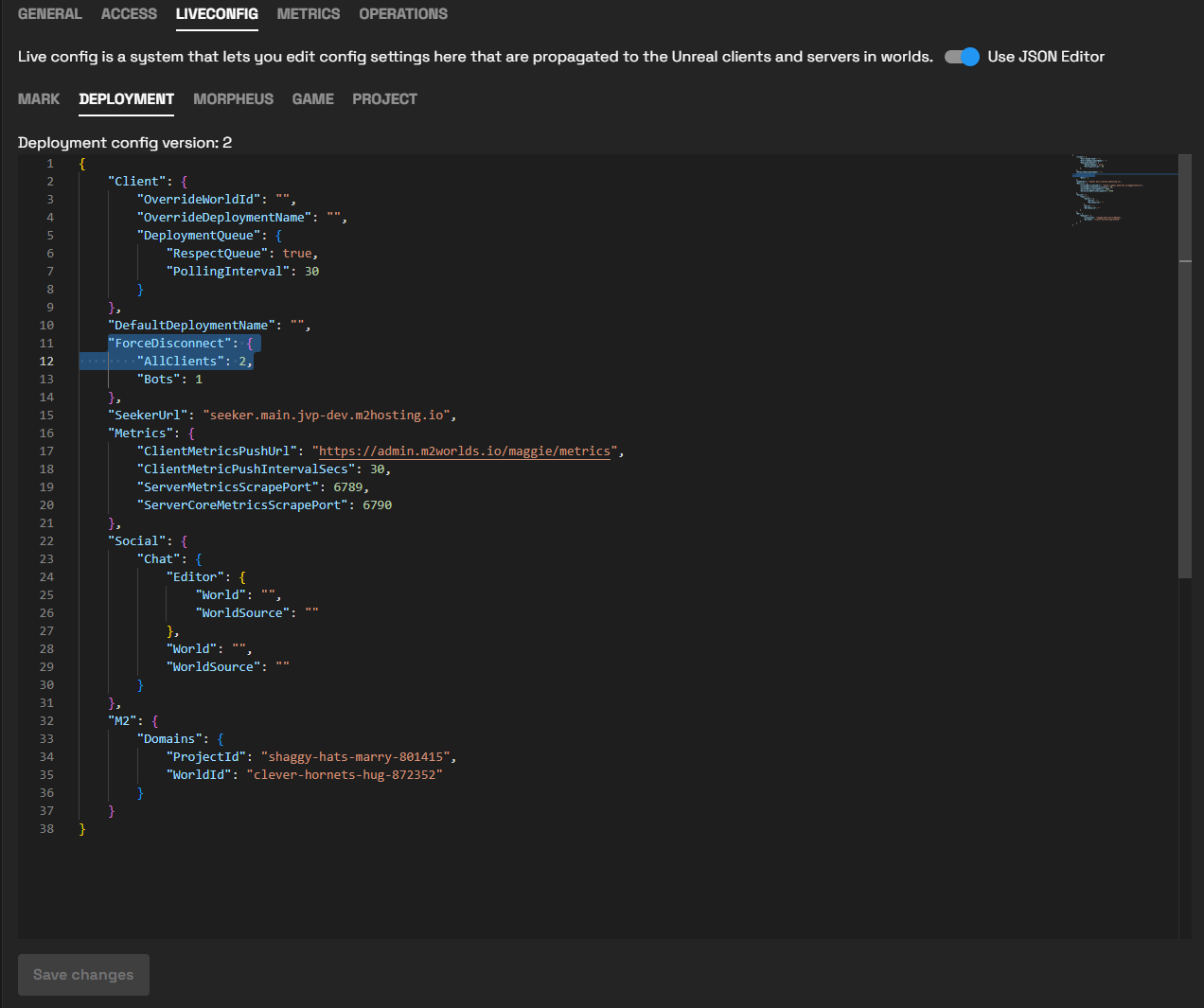
Once saved, **increment** the `AllClients` value , found under `ForceDisconnect` in live config. This will force all current clients connected to your main world to rejoin into your backup world:
If successful, you should see all players going back to the loading screen, and rejoining into your failover deployment