# Morpheus Inspector

## Overview

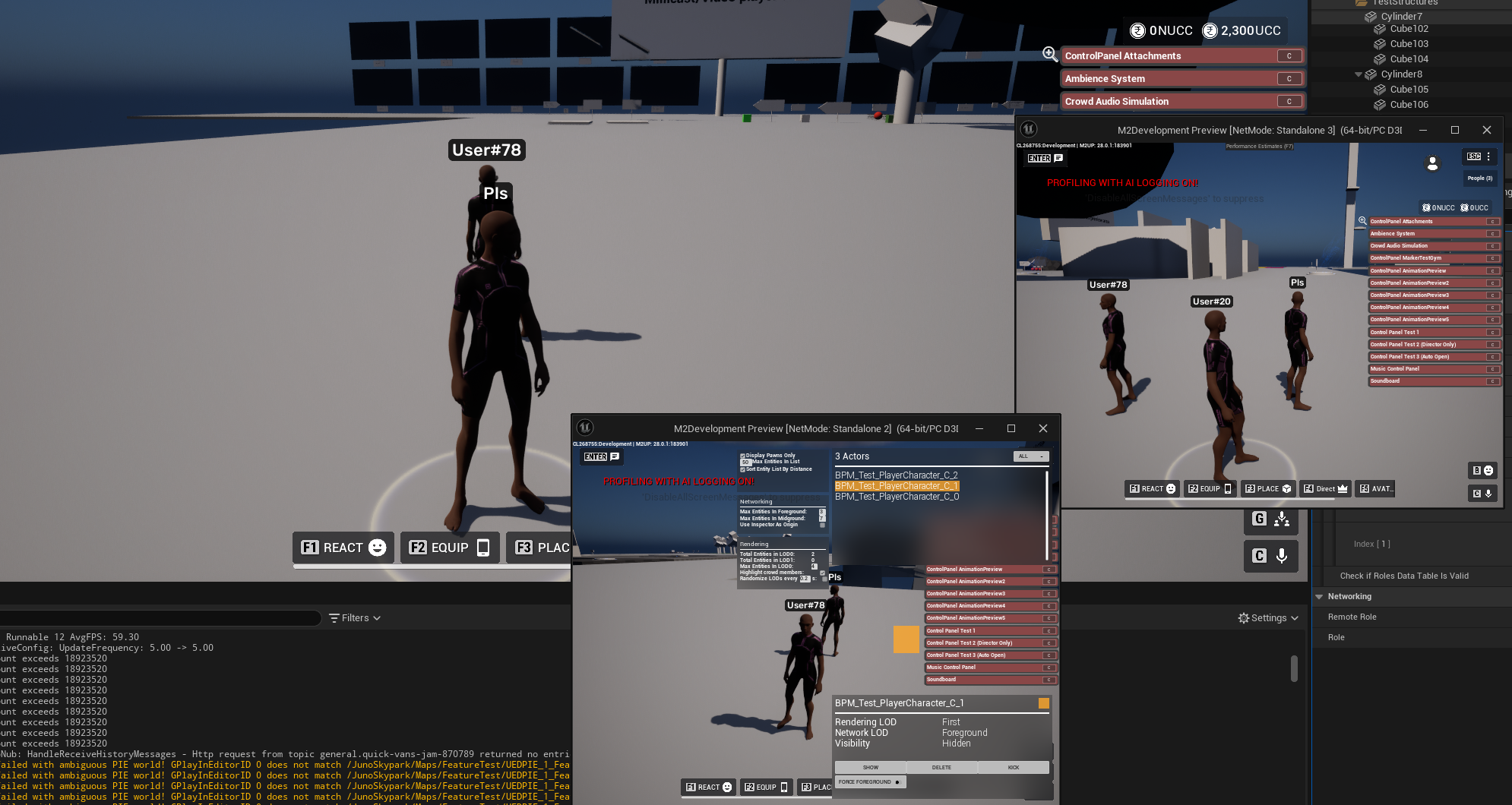
The Morpheus Inspector is a tool that can be used in editor and live deployments, for debugging and moderation purposes. It has features such as being able to:

* Hide and delete entities at runtime
* Kick players
* Test out/debug behaviors at scale, by viewing and modifying the network and rendering lod levels of entities at runtime

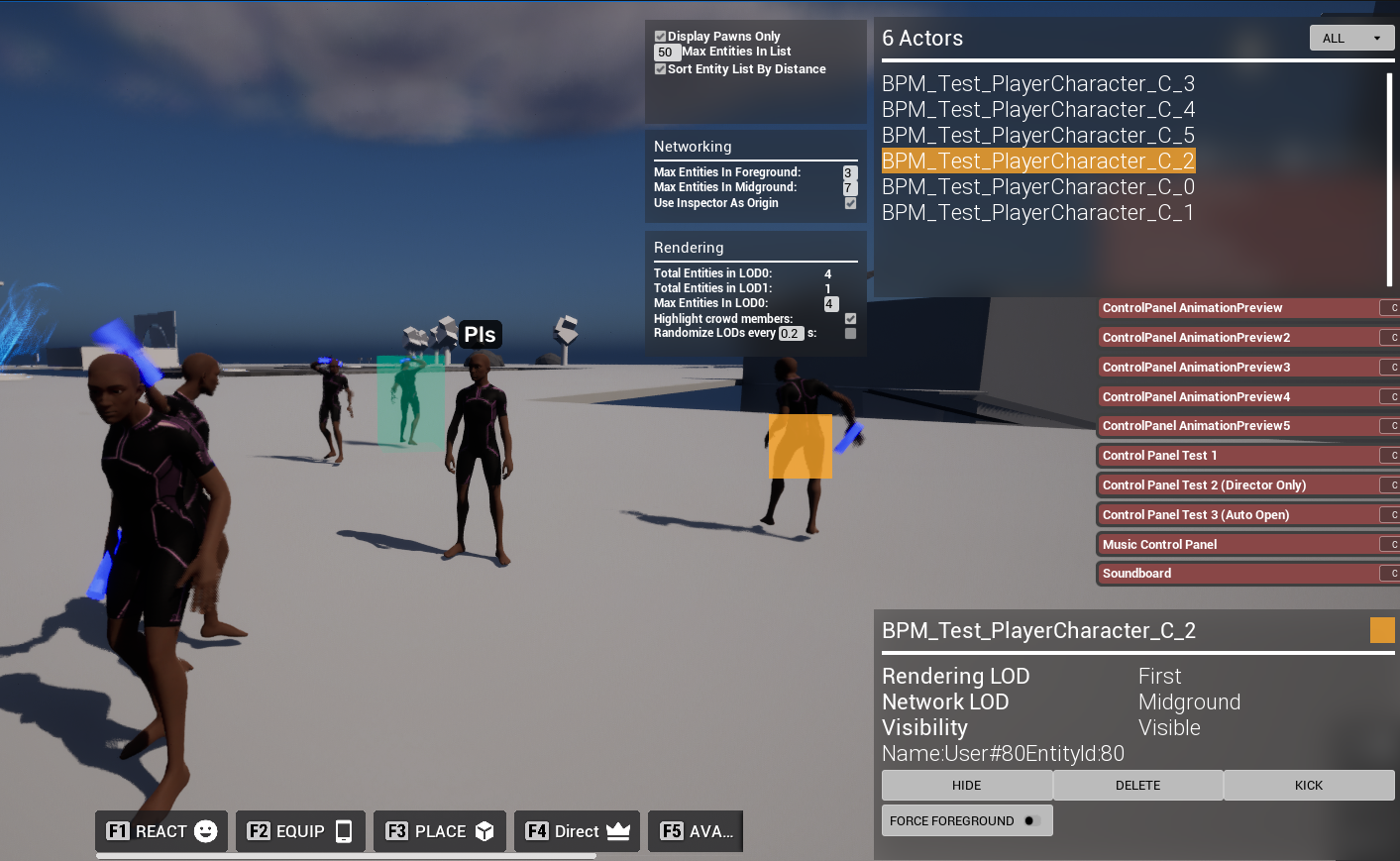
<figure><img src="https://1456550285-files.gitbook.io/~/files/v0/b/gitbook-x-prod.appspot.com/o/spaces%2FoWTlPaoHd1McSakqMigu%2Fuploads%2Fgit-blob-5bb46d7e3e759749040ac5ae3aef6dbb87aa75e1%2Fimage.png?alt=media" alt=""><figcaption><p>The Inspector Admin panel. Once enabled, your local user will become a fly cam, and you can observe and interact with the entities in the world.</p></figcaption></figure>

## Features

### View the entites in the deployment

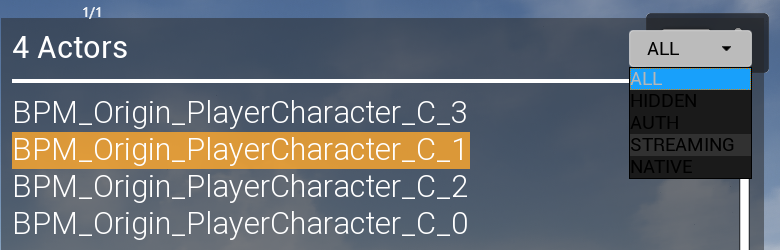
In the top right of the UI, we have the list of entities currently in the deployment.

<figure><img src="https://1456550285-files.gitbook.io/~/files/v0/b/gitbook-x-prod.appspot.com/o/spaces%2FoWTlPaoHd1McSakqMigu%2Fuploads%2Fgit-blob-1d165eda8319954193b2c02c71cef521b493830f%2Fimage.png?alt=media" alt=""><figcaption></figcaption></figure>

Actors in the actor list are optionally sorted by distance, and nearby actors will be clickable to select them in the entity list. Note the filter for different actor types in the top right.

### Select a player

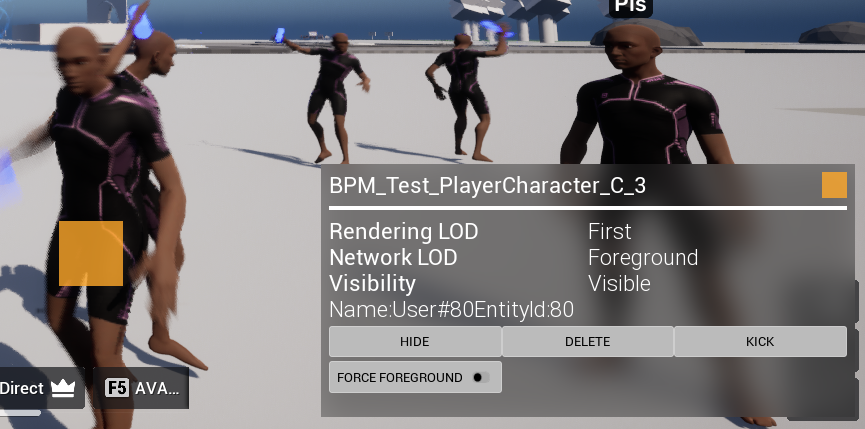
When you select a player, either via the list, or by clicking on them (if they are in the First Rendering LOD), it will highlight them with an orange box, and give you additional details about them, such as their network level and name. It will also give you further actions you can do to the specific player.

<figure><img src="https://1456550285-files.gitbook.io/~/files/v0/b/gitbook-x-prod.appspot.com/o/spaces%2FoWTlPaoHd1McSakqMigu%2Fuploads%2Fgit-blob-b364b27d2698d4fd26a8344c1a7c4a2e6b3daf92%2Fimage.png?alt=media" alt=""><figcaption></figcaption></figure>

{% hint style="info" %}
NOTE: If you are using [avatars](https://docs.msquared.io/creation/unreal-development/features-and-tutorials/avatars "mention"), they will need to have physics assets configured (blocking the `Shootable` query channel), to be clickable. For more details on how to do this, see [avatar-physics-assets](https://docs.msquared.io/creation/unreal-development/features-and-tutorials/avatars/avatar-physics-assets "mention").
{% endhint %}

### Kick Player

This will disconnect the owner of the actor you have selected.

`OnKickPlayer` on the MorpheusInspectorAdmin is triggered when this is done, so a project could bind to this event to e.g. add logic to ban users that are kicked in this way.

### Hide Actor

This makes the actor hidden for all other clients (they will be unaffected on their own machine). You can do this if they are being a niusance, and getting in the way of things!

<figure><img src="https://1456550285-files.gitbook.io/~/files/v0/b/gitbook-x-prod.appspot.com/o/spaces%2FoWTlPaoHd1McSakqMigu%2Fuploads%2Fgit-blob-469591acdae46abe48fb08a6fd14cbbed5e6403a%2Fimage.png?alt=media" alt=""><figcaption></figcaption></figure>

### Delete Actor

This will destroy the actor on the server. This will delete it for all clients.

{% hint style="warning" %}
Doing this for player characters could lead to strange behaviour. If you're wanting to remove players, better to use Kick
{% endhint %}

### Force Foreground

A local only control, for debugging purposes.

Forces the actor into the network foreground. This can be used to demo actors switching in and out of the network foreground

### Network related options

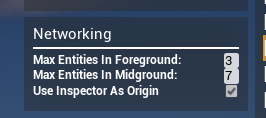
Has the following:

* Max Entities In Foreground: Displays the current max entities in the network foreground. You can modify this text box to modify the number **on your local machine**
* Max Entities In Midground: Displays the current max entities in the network midground. You can modify this text box to modify the number **on your local machine**

{% hint style="info" %}
NOTE: The number in the midground includes all the number in the foreground. Therefore, `Max Entities In Midground` must be >= `Max Entities In Foreground`. If you want 3 foreground entities, and 3 explicitly midground entities, you would want `Max Entities In Midground` to be 6.
{% endhint %}

* Use Inspector As Origin: By default, our own morpheus actor remains the "origin" for network prioritization. If you want to instead make the inspector fly cam be the "origin", check the box.\
  For more details on this, see [#modifying-the-client-origin-for-network-prioritization](https://docs.msquared.io/creation/getting-started/networking/network-levels#modifying-the-client-origin-for-network-prioritization "mention")

<figure><img src="https://1456550285-files.gitbook.io/~/files/v0/b/gitbook-x-prod.appspot.com/o/spaces%2FoWTlPaoHd1McSakqMigu%2Fuploads%2Fgit-blob-434829743c2e796b3fe4e04fbcfd0c23f48b3838%2Fimage.png?alt=media" alt=""><figcaption></figcaption></figure>

For more info on these, see [network-levels](https://docs.msquared.io/creation/unreal-development/getting-started/networking/network-levels "mention")

### Rendering related options

Has the following:

* Total Entities in LOD0: Shows the number of entities currently in the deployment in the first rendering LOD (those with real actors)
* Total Entities in LOD1: Shows the number of entities currently in the deployment in the second rendering LOD (those represented by the animated crowd)
* Max Entities in LOD0: Displays the current max entities in the first rendering LOD. You can modify this text box to modify the number **on your local machine**.
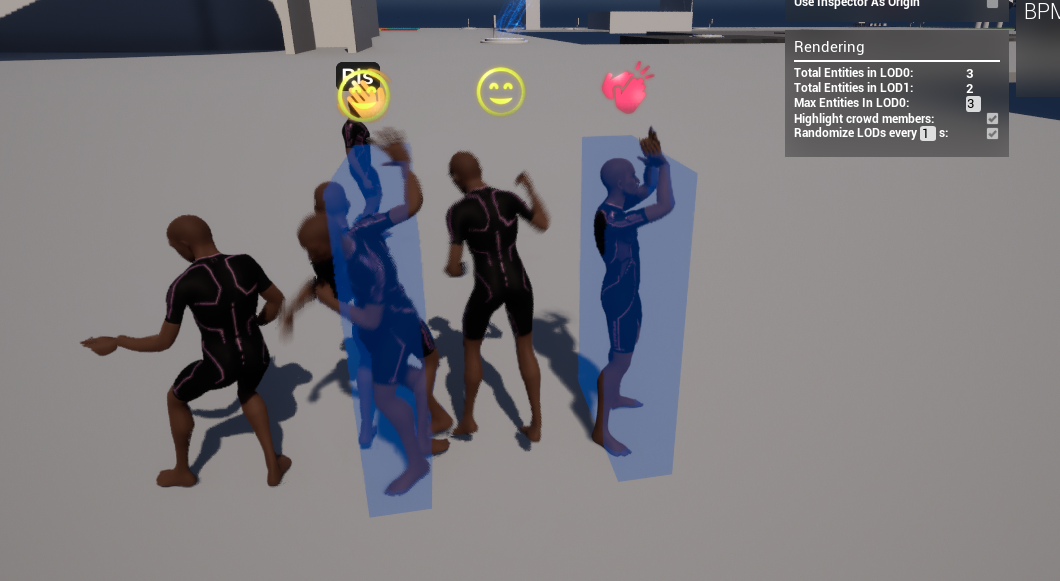
* Highlight crowd members: If you tick this box, animated crowd members will be highlighted with translucent boxes, to make determining who are crowd members easier.\
  This is the same as using the `AnimatedCrowd.Debug.DrawBoxes 1` console command from [animated-crowd-console-commands](https://docs.msquared.io/creation/unreal-development/features-and-tutorials/the-animated-crowd/legacy-animated-crowd/animated-crowd-console-commands "mention").
* Randomize LODs every `[X]`s: If this is ticked, instead of using your camera's location to determine the rendering LODs, we randomize them every `[X]` seconds **on your local machine**. This can be used to make all the characters randomly shift their priorities, and so switch between LOD levels. You can use this to observe how characters behave when changing LOD levels (this can be useful for e.g. debugging [actor-pooling](https://docs.msquared.io/creation/unreal-development/features-and-tutorials/actor-pooling "mention") related issues)

<figure><img src="https://1456550285-files.gitbook.io/~/files/v0/b/gitbook-x-prod.appspot.com/o/spaces%2FoWTlPaoHd1McSakqMigu%2Fuploads%2Fgit-blob-ac7ff553a3f82f13726d8ac378844950f8fc6754%2Fimage.png?alt=media" alt=""><figcaption></figcaption></figure>

For more info on the rendering LOD levels, see [the-animated-crowd](https://docs.msquared.io/creation/unreal-development/features-and-tutorials/the-animated-crowd "mention")

## How to open the inspector

By default, the Inspector can be only opened with the command `Morpheus.Inspector.Admin`.

{% hint style="info" %}
Note that as the Inspector is only accessible via a console command, you'll only be able to access it from a non-Shipping client. This doesn't mean that hacked Shipping clients won't be able to run this command though!
{% endhint %}

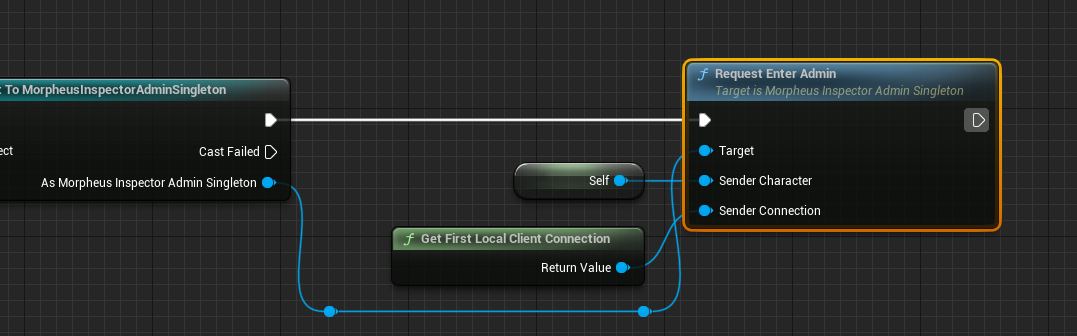
To expose the ability to access the Inspector without a console command, in your project you can call `RequestEnterAdmin` and `ExitAdmin` from the client `MorpheusInspectorAdminSingleton` [singleton](https://docs.msquared.io/creation/unreal-development/features-and-tutorials/singletons).

<figure><img src="https://1456550285-files.gitbook.io/~/files/v0/b/gitbook-x-prod.appspot.com/o/spaces%2FoWTlPaoHd1McSakqMigu%2Fuploads%2Fgit-blob-c6f18d4db1865a1803b224a80f1b8b29fdd0864e%2Fimage.png?alt=media" alt=""><figcaption><p>Opening the Inspector from a client-side BP function</p></figcaption></figure>

### Determining who can access the inspector

The server determines which players have permissions to open the Inspector. The default Inspector only allows permissions for users with the `Director` role (or any role/character with the `Capabilities.Morpheus.InspectorEnabled` capability) to open the Inspector.

<figure><img src="https://1456550285-files.gitbook.io/~/files/v0/b/gitbook-x-prod.appspot.com/o/spaces%2FoWTlPaoHd1McSakqMigu%2Fuploads%2Fgit-blob-d396b719c243633f8fbd1fa628dc336811d7cec3%2Fimage.png?alt=media" alt=""><figcaption></figcaption></figure>

## Extending the inspector

To change the permissions for who can access the Inspector, or to extend its functionality, you will need to create an Inspector singleton class that extends from `Morpheus Inspector Admin Singleton` and set it as the `Inspector Admin Singleton Class` in your project's world settings.

This singleton class implements `CanEnterAdmin`, which determines which players can access the Inspector panel, and has the `Admin Class` field which determines which admin panel actor is spawned. The admin panel actor is the actor that determines the behaviour of the Inspector.

<figure><img src="https://1456550285-files.gitbook.io/~/files/v0/b/gitbook-x-prod.appspot.com/o/spaces%2FoWTlPaoHd1McSakqMigu%2Fuploads%2Fgit-blob-ee8cab3e0d5290e52831b6894be4c749372414b6%2Fimage.png?alt=media" alt=""><figcaption><p>BPM_M2_DirectorAdminInspectorSingleton is the default class, whose CanEnterAdmin logic determines that only users with the Director role can open the admin panel.</p></figcaption></figure>