> For the complete documentation index, see [llms.txt](https://docs.msquared.io/llms.txt). Markdown versions of documentation pages are available by appending `.md` to page URLs; this page is available as [Markdown](https://docs.msquared.io/creation/worlds/invite-players/role-groups.md).
# Setting Role Groups
How to setup what Roles users have
## Overview
Role groups control who can access your world and what **game roles** they have, e.g. Participant, Presenter, etc. Groups can be configured based on individual email address or whole email domains, e.g. improbable.io.
Each role groups defines a list of games roles which affect what capabilities the relevant user(s) have in the world, what their character looks like, and more. Each user has a list of game roles available to see (see the screenshot below).
When a player spawns into a virtual world, they are assigned one of their available games roles.
Players can change which game role they have active in the settings menu. This functionality is useful because it lets a special guest switch between being a presenter or a regular participant, or the like.
## Setting Roles when Starting Worlds
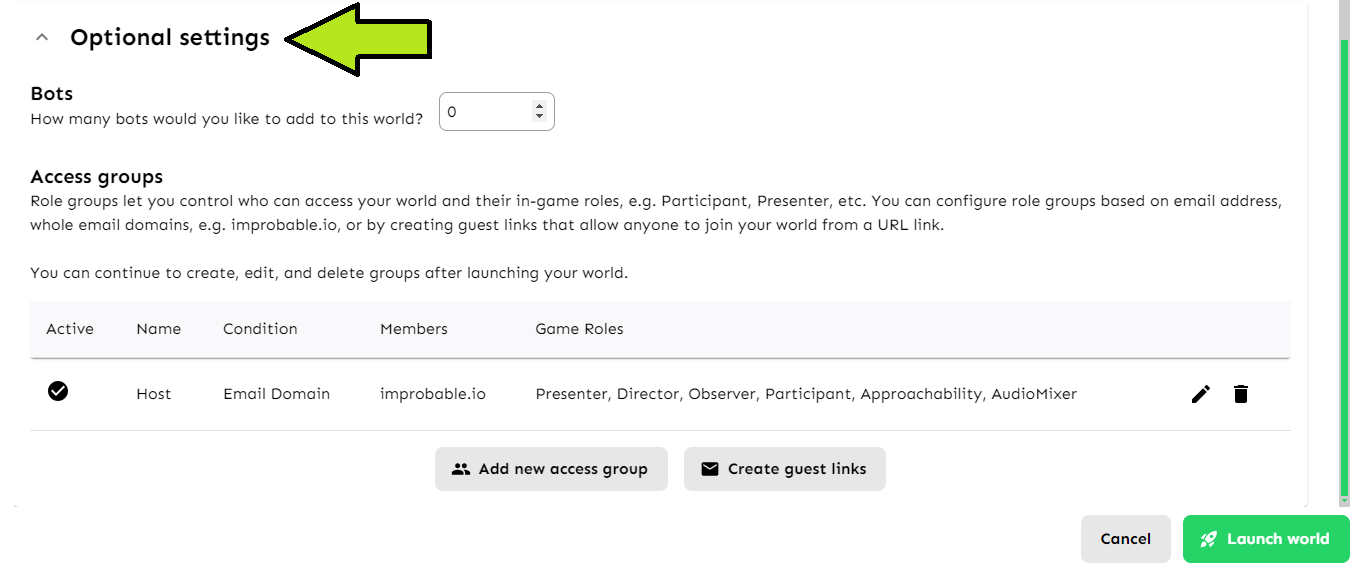
You can configure role groups for a world when [Starting a World](/creation/worlds.md) or while its running, to setup when starting you will find the Access groups in the Optional Settings section.
Setting up Roles in the Optional Settings when launching a world
By default, the world has a single role group for the host providing them with all game roles.
You can configure access for either specific emails or email domains so and for the whole of the improbable.com domain. This will only work for users that have access to the site, to allow others access, consider using the Create Guest Links option.
## Applying the roles in-game
For details on how to configure the roles game-side, see [In-Game Roles](/creation/unreal-development/features-and-tutorials/the-m2-example-plugin/in-game-roles.md)