> For the complete documentation index, see [llms.txt](https://docs.msquared.io/llms.txt). Markdown versions of documentation pages are available by appending `.md` to page URLs; this page is available as [Markdown](https://docs.msquared.io/apis-and-tooling/dashboard/assets/templates.md).
# Templates
A Template functions the same as a native Unreal Engine template. It is a content bundle that can be used to initialise a new project.
{% hint style="info" %}
Templates can be created from en entire project, or just a single sub-folder
{% endhint %}
## Upload subfolders as separate templates
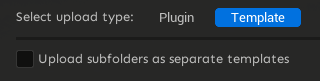
During upload, users have the option to enable `Upload subfolders as separate templates`.
This option creates a template for every immediate sub-folder within the project content folder. We recommend users do this when they want to:
* Upload more than 1 template from a single uproject.
* Exclude content from a template. Assets outside of the sub-folder will be exlcuded from the template.
* Keep the template content organised. It is easier to see what content will be included in your template if it is all contained within one folder.
## Relation to Engine plugins
Engine plugins are uploaded at the same time as templates. When a template is uploaded, all it's dependencies are found and if any exist within a project plugin, this plugin will be treated as an Engine plugin and uploaded as well.
## Guides
Create a new Template Assets
1. (Optional) Create a new folder within your project content directory representing the template content.\
\

{% hint style="info" %} This step is important if you want to upload multiple templates at once or if you only want to include part of this uproject in the template. This can be done by enabling the option to `upload content sub-folders as separate templates` later in the upload process.
{% endhint %}
2. Create a new map.\
\
\\
3. Add some content to your map.
{% hint style="info" %} To upload an engine plugin as well as a template, create a project plugin and place at least some of the map content within that project plugin. It will be detected as a dependency and uploaded alongside the template as an engine plugin!
{% endhint %}
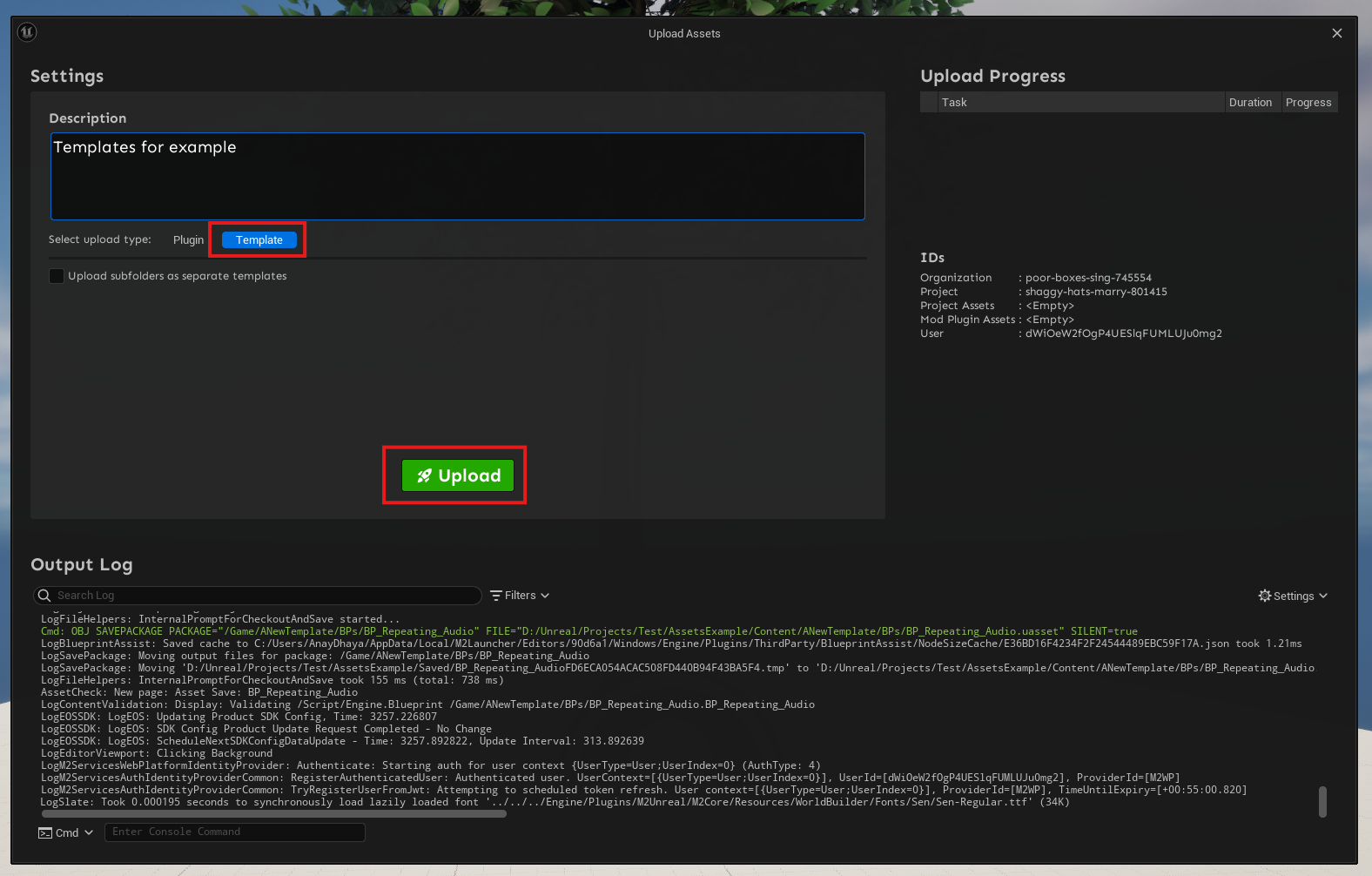
4. Click the Assets button in the top right of the screen to open the Assets upload window.\
\
\\
5. Perform the following actions.
1. Select Template for the upload type
2. (Optionally) Add a description for your upload
3. (Optionally) enable `Upload subfolders as separate templates`
4. Click Upload
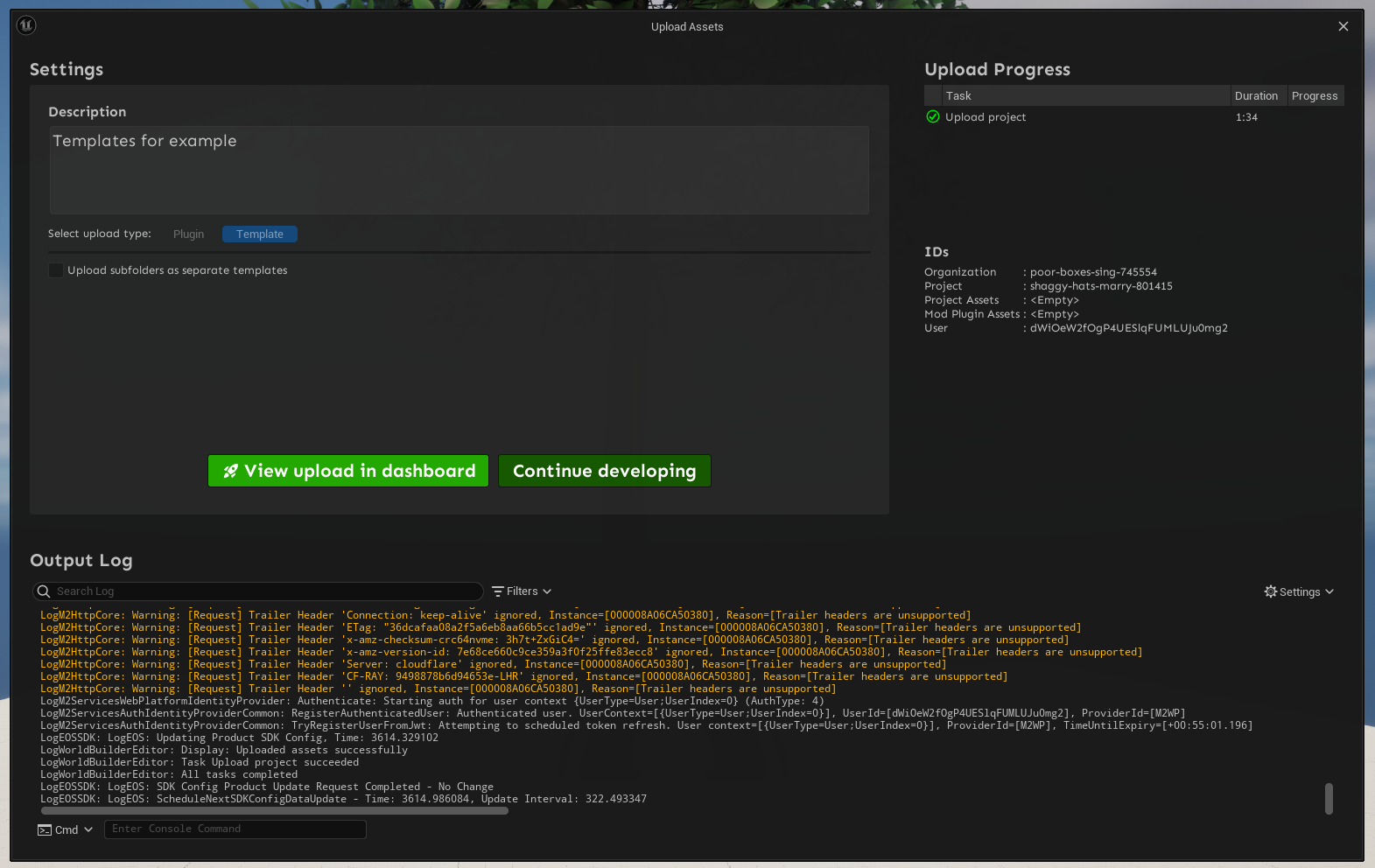
6. Click View upload in dashboard to navigate to the dashboard page.\\
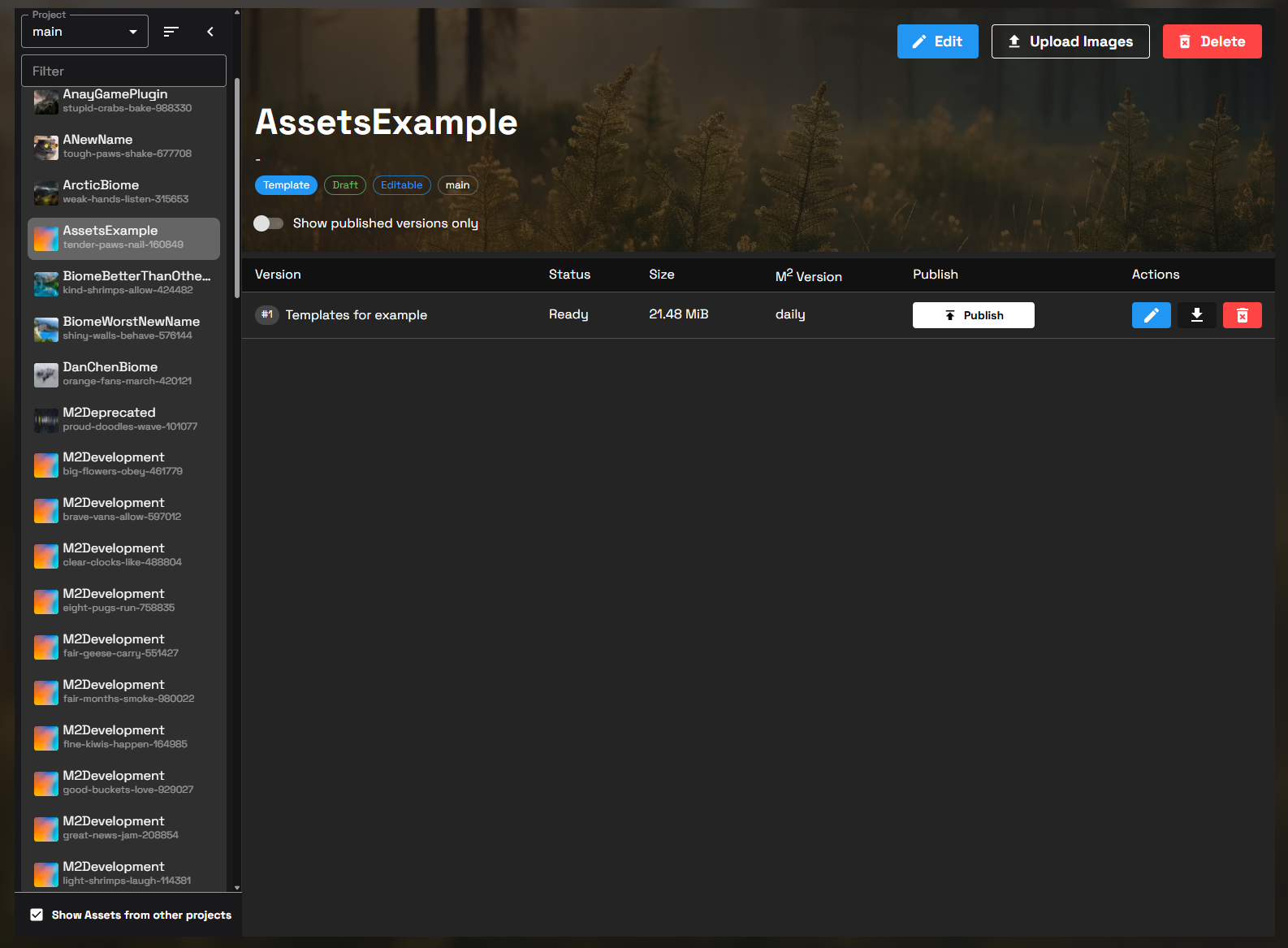
{% hint style="info" %} If the dashboard does not open on your new Assets, you can find it in the left widget or by using the filter. It will either be named:
* After the uproject it was uploaded from - if upload subfolders as separate templates was false
* After the folder(s) you created under the project content directory - if upload subfolders as separate templates was true
{% endhint %}
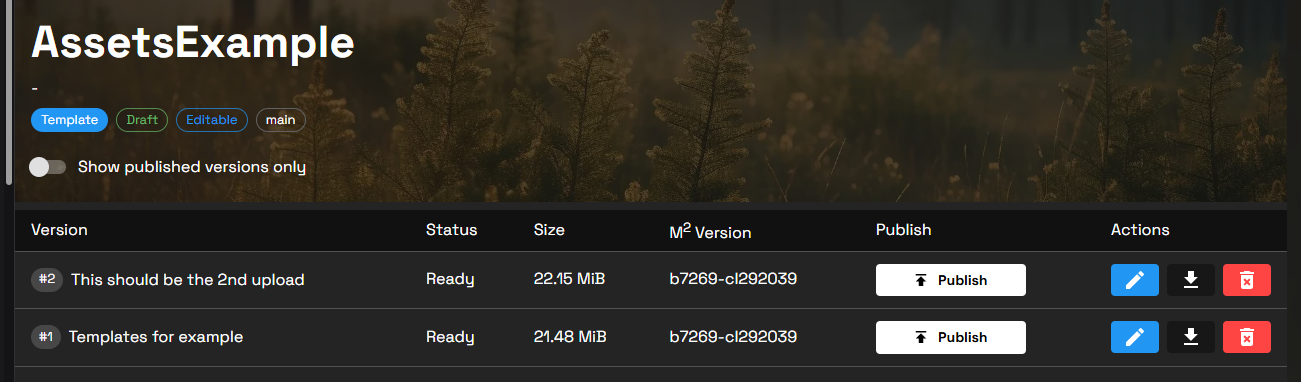
4. You have now created a new Template Assets with an initial Assets Version uploaded and can being managing the template.
Uploade a new Template Assets Version
To upload a new Template Assets Version, simply repeat the process to [create a template Assets](#create-a-new-template-assets). This will automatically detect an Assets exists and upload your template as a new Assets Version.
Consume a Template Assets
Templates are consumed by users via the [Launcher](/apis-and-tooling/launcher/msquared-launcher/templates.md).