> For the complete documentation index, see [llms.txt](https://docs.msquared.io/llms.txt). Markdown versions of documentation pages are available by appending `.md` to page URLs; this page is available as [Markdown](https://docs.msquared.io/creation/unreal-development/features-and-tutorials/avatars/using-an-avatar-in-game.md).
# Using an Avatar in-game
This page outlines details on how to use these avatar Urls in-game, via the `CharacterAssetComponent`.
The `CharacterAssetComponent` is found on your morpheus actor (added by default for children of `M2M_CharacterBase`)
## How To Set Your Url
To apply your avatar Url, you can use one of the following:
### Directly Setting your Url
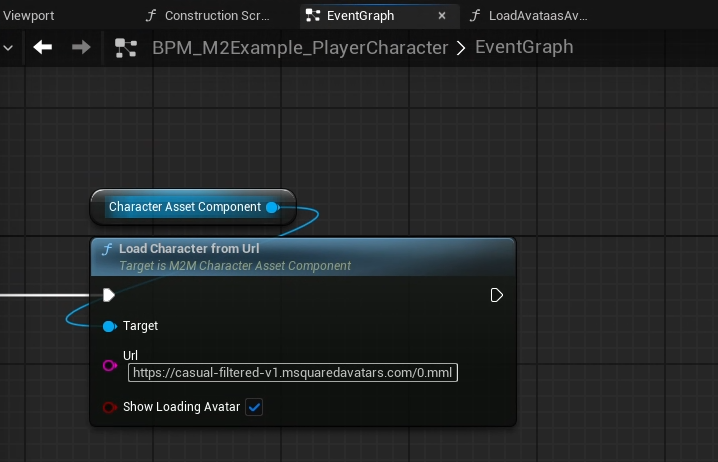
The `CharacterAssetComponent` has a `LoadCharacterFromUrl` function, which allows you to apply your Url.
{% hint style="info" %}
This function must be called on the *authoritative client*, so that it gets replicated to other users.
{% endhint %}
### The Default MML Url
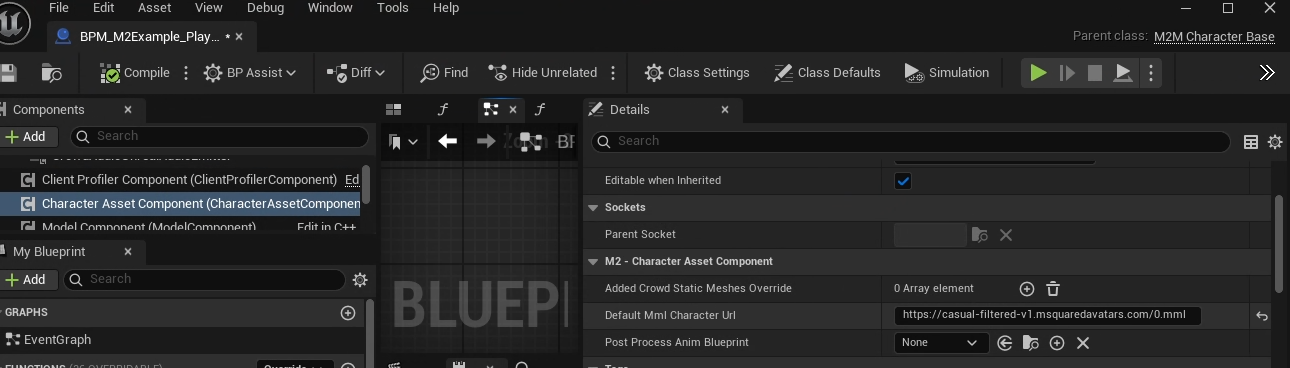
If you want all characters to default to a specific Url, paste the Url into the `DefaultMmlCharacterUrl` field of your Morpheus Actor's `CharacterAssetComponent`:
### Multi-mesh avatar considerations
The main avatar GLB will be loaded onto the default Mesh component of your pawn actor. If your MML contains multiple GLB meshes (using child `` nodes) then an additional `SkeletalMeshComponent` will be created for each sub-mesh.
If you want to make any tweaks to the player mesh after loading (for example disabling shadows) then you may need to iterate the child mesh components and make the change to each of them. Trigger this with the `M2M_CharacterAssetComponent::OnCharacterLoaded` delegate, which is called once all the components have been created.