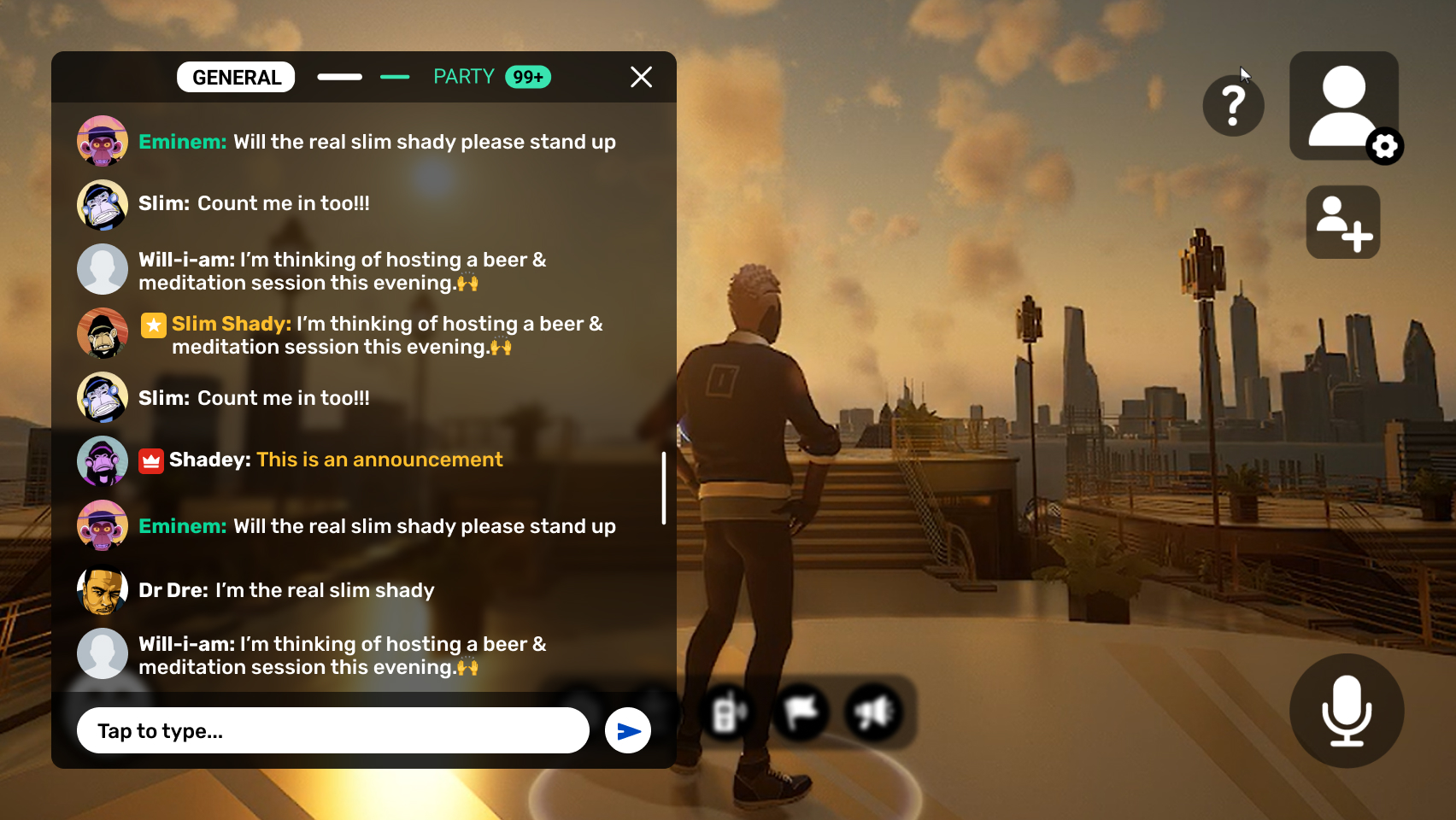
> For the complete documentation index, see [llms.txt](https://docs.msquared.io/llms.txt). Markdown versions of documentation pages are available by appending `.md` to page URLs; this page is available as [Markdown](https://docs.msquared.io/creation/unreal-development/features-and-tutorials/communication/text-chat/in-experience-chat/experience-only-chat.md).
# Experience Only Chat
Only Experience Chat
Legacy Text chat does not support Web
{% hint style="info" %}
**Stable -** Can be used with minimal support by referencing documentation and examples
{% endhint %}
## Overview
This plugin provides support for sending and receiving chat messages in a Morpheus project while offering flexible moderation options and custom data per message. Features include:
* Broadcast chat messages to all `MorpheusChatReceiverComponents` via an authoritative `MorpheusChatSenderComponent`
* Install arbitrary message filters into the chat server to accept or reject messages based upon custom rules
* Have arbitrary actors act as moderators by giving them a `MorpheusChatModeratorComponent`
* Assign custom data to each message which can be changed by moderators and filters
The plugin is based around a few main parts:
* `FMorpheusChatMessage`
This is the struct containing all relevant information about a chat message:
```
USTRUCT(BlueprintType)
struct FMorpheusChatMessage
{
GENERATED_BODY()
// Unique ID used to identify this message in the MorpheusChat plugin
UPROPERTY(BlueprintReadOnly)
int32 MessageId;
// The actor who sent this message via its MorpheusChatSenderComponent
UPROPERTY(BlueprintReadOnly)
class AMorpheusActor* Sender;
// The message content
UPROPERTY(BlueprintReadOnly)
FString Message;
// The server time when this message was initially received
UPROPERTY(BlueprintReadOnly)
float ServerTime;
// Project-specific data associated with this message
UPROPERTY(BlueprintReadOnly)
int32 CustomData;
};
```
* `AMorpheusChatServer`
The chat server provides the backend for sending and receiving messages. It keeps track of all messages and broadcasts them via multicast to all clients. You should only have a single chat server in your world.
* The three chat component types
* `AMorpheusChatSenderComponent`
Any actor with this component can attempt to broadcast a chat message to all receivers. Derived classes can override `CanSendMessage` to put restrictions on when to allow message broadcasting according to project rules.
* `AMorpheusChatReceiverComponent`
Each client actor with this component receives all chat messages multicast by the chat server. It's up to the project to decide what to do with each message, whether to cache a number of recent messages etc.
* `AMorpheusChatModeratorComponent`
An actor with a moderator component can act as a message filter and accept or reject messages based on project rules. They can also update custom data for already sent messages.
* Message filters
By default all messages received by the chat server are multicast to all receivers. However, projects can define custom rules to decide which messages are accepted and which should be rejected. This functionality is exposed via the `IMorpheusChatFilter` interface. Projects can implement arbitrary filters and install them into the chat server or into other filters that accept children.
## Integration
To integrate the Chat plugin, follow these steps:
1. Spawn an instance of `AMorpheusChatServer` into your server world
2. Derive a class from `AMorpheusChatReceiverComponent` and override `HandleMessageReceived`. In your override, decide what to do with each message, e.g. expose it to UI, cache an array of the last messages etc. Put this component on each client-authoritative actor that needs to receive chat messages
3. *(optional)* Override `HandleUpdateCustomData` on your receiver component if you want to support updating custom data for messages that were already sent. One use case would be where a moderator can decide later to highlight a message that was already sent by setting a flag in the custom data. Since you only receive the `MessageId`, you need to cache a reasonable number of received messages on the client and look it up yourself to get any benefit out of this feature
4. Put a `UMorpheusChatSenderComponent` on all client-authoritative actors that should be able to broadcast messages
5. *(optional, recommended)* Derive your own sender component and override `CanSendMessage` to control the conditions when a message is allowed to be sent. This function is called on both client and server.
6. *(optional, recommended)* Write any number of message filters and install them into your chat server
7. *(optional)* Derive a `UMorpheusChatModeratorComponent` and put it onto actors that should moderate messages before they are multicast to everyone. Register the component as a message filter in your chat server. Implement client-side UI to show pending messages to moderators so that they can accept or reject each message. Make sure you remove your moderator components from their parent filter before they are are destroyed so that their pending messages are correctly retried
8. *(optional)* Associate custom data with your messages in your own filters or via the moderator component
#### Bandwidth considerations
This plugin multicasts messages to all client-side chat servers (and hence all receiver components) whenever the message passes all message filters. Due to the large scale nature of Morpheus projects, this could quickly lead to network congestion if you have no other means of throttling messages. It is therefore strongly recommended to implement a way to limit the amount of messages that can be sent per sender component in a given time frame. That limit depends on the number of senders you want to support inside the network stack you've set up for your project.
The plugin already offers a variety of filters that can be used for this purpose. See the list of common filters further below.
#### Filtering messages
A large part of the plugin revolves around the concept of filtering messages before they are broadcast to everyone. This is handled via the `IMorpheusChatFilter` interface:
```
// Interface to implement a chat filter. A chat filter can decide whether to accept or reject a message. Accepted messages are
// passed on to the next filter in the parent (if one exists). Rejected messages are discarded immediately. If the filter returns
// Pending, the filter now owns this message and must use the PendingMessageHandler to resolve it later
class IMorpheusChatFilter
{
GENERATED_BODY()
public:
// Called initially if the parent filter supports pending messages. Should be stored by this implementation if it wants to
// return Pending as a filter result. Upon returning Pending, it must use the stored Handler to accept or reject the message
// at a later time
virtual void SetPendingMessageHandler(TScriptInterface Handler) = 0;
// Process the message according to this filter's specification. DO NOT store the MessageCustomData reference. Changes to
// MessageCustomData are applied independent of the filter result. For pending results, you can also change custom data when
// accepting a message via the IMorpheusChatPendingMessageHandler interface later
virtual EMorpheusChatFilterResult ProcessMessage(const FMorpheusChatMessage& Message, IN OUT int32& MessageCustomData) = 0;
// Must be called by the parent filter after this filter was removed. If this filter contains any pending messages, it is
// expected to call RetryMessage for all of them so that the messages aren't lost. In your implementation, also call this for
// all owned child filters
virtual void HandleFilterRemoved() = 0;
};
```
The main part of a filter is the `ProcessMessage` function which is called by the parent filter. In your implementation, decide what to do with the message that was passed in. There are three possible results:
```
enum class EMorpheusChatFilterResult
{
// The message passed the filter successfully
Accepted,
// The message was rejected and will be discarded
Rejected,
// Message approval is pending. The filter will call back later
Pending,
};
```
The chat server has a single filter slot which is initially empty. If no filter is installed, all messages are broadcast automatically. To install a filter, call `InstallMessageFilter`. In order to have more than one filter for your messages, you need to compose them from multiple filters. The plugin already comes with a number of default filters you can use:
* `UMorpheusChatRoundRobinFilter`
The round robin filter accepts an arbitrary number of child filters. Whenever it receives a message for processing, it forwards that message to the next child filter, wrapping around automatically. If no child filters are installed, messages are always accepted.
* `UMorpheusChatChainFilter`
The chain filter accepts an arbitrary number of child filters. Whenever it receives a message for processing, the message is passed through all of the filters until one of them returns `Rejected` or all of them eventually return `Accepted`. If a filter returns `Pending`, the chain is continued with the next filter in line once the pending message is resolved. If no child filters are installed, messages are always accepted.
* `UMorpheusChatAcceptIfModeratorFilter`
Automatically accepts all messages if the sender has a `UMorpheusChatModeratorComponent`. Otherwise processing is forwarded to the next filter. If no next filter is installed, messages are always accepted.
* `UMorpheusChatRateLimitFilter`
Accepts all messages but applies a rate limit to them. Messages are queued up and accepted according to the rate limit on each tick
* `UMorpheusChatOptionalFilter`
Helper class for an optional filter. If no child filter is registered, it accepts all messages, otherwise the child filter decides. This is useful for installing optional filters into a chain filter and keeping a reference to it without having to extract it from the chain filter.
* `UMorpheusChatQueueFilter`
Acts as a rate limiting filter by enforcing a maximum number of pending messages in flight in its child filter. This is useful as part of a load balancing strategy involving filters with user input.
* `UMorpheusChatLoadBalancingFilter`
This filter attempts to keep an equal load on child filters with pending messages. The child filter with the least number of pending messages always gets the next message. In case of ties, the filter picks the oldest filter that was registered.
* `UMorpheusChatPhraseFilter`
This filter searches for pre-configured phrases in a message and accepts or rejects the message depending on its mode and whether any of those phrases was found. This can be used as a profanity filter, for example.
There are also `UMorpheusChatSingleChildFilterBase` and `UMorpheusChatChildFiltersBase` for deriving your own filters that support child filters.
#### Pending messages
If a filter can't decide immediately whether to accept or reject a message, it can return `EMorpheusChatFilterResult::Pending` to indicate that the message will be resolved later. A common example would be the `UMorpheusChatModeratorComponent`. Chat moderation usually requires user input so the message has to be displayed to a moderator for consideration before it can be resolved.
To resolve a pending message, a second interface is used: `IMorpheusChatPendingMessageHandler`. If the parent filter supports pending messages, it should call `SetPendingMessageHandler` on its child filters and pass through a handler. Once a filter has decided what to do with a pending message, it can call `AcceptPendingMessage` or `RejectPendingMessage` on that interface. The chat server itself is a pending message handler and always calls `SetPendingMessageHandler` on its single filter.
If all filters eventually return `Accepted`, the message is broadcast to all receivers. If any filter returns `Rejected`, the message will be immediately discarded.
#### Retrying messages
If a filter has pending messages to resolve and it has to be removed from the game (e.g. a moderator actor leaving the game with unresolved messages), those messages need to be returned into the installed filter chain to ensure they are not lost. To facilitate this, filters can call `RetryMessage` on the `IMorpheusChatPendingMessageHandler` for all owned, pending messages. It depends on the message handler how retries are resolved. Generally, it should attempt to continue with the next filter in line.
Retrying messages should happen inside your override of `HandleFilterRemoved`. This function is called by the parent filter after your filter has been removed (and you need to ensure this happens when writing your own filters with child filters).
#### Composition example
Here's an example for how to compose filters:
```
void InstallFilters(AMorpheusChatServer* ChatServer, const TArray& Moderators)
{
UMorpheusChatAcceptIfModeratorFilter* ModeratorPassthrough = NewObject();
UMorpheusChatRoundRobinFilter* RoundRobinFilter = NewObject();
ModeratorPassthrough->InstallNextFilter(RoundRobinFilter);
for (const UMorpheusChatModeratorComponent* Moderator : Moderators)
{
RoundRobinFilter->InstallChildFilter(Moderator);
}
ChatServer->InstallMessageFilter(ModeratorPassthrough);
}
```
This filter setup first checks if the message was sent by a moderator and auto-accepts it. If it wasn't sent by a moderator, it's passed on to the round robin filter which in turn contains all of the moderator components. So each moderator will get a message to resolve in a round robin fashion.
The moderator component always returns `Pending`, so only when the project-specific implementation has decided what to do with the message, it will pass and be fed back into the chat server.
#### Filter gotchas
* It's your responsibility to ensure that filters are removed from their parent filter before they are destroyed (and hence retry their pending messages if necessary). The plugin assumes that all filters remain valid as long as they are installed.
* Do not install the same filter instance twice. This could assign different PendingMessageHandlers depending on where they are added which would likely break the filter in either location
### Custom data
`FMorpheusChatMessage` contains a `CustomData` property which is not used by the plugin or any of its common filters. Projects can use this field to associate arbitrary data with each message, e.g. to set flags whether to highlight a message, make it sticky etc. Custom data can be set in three ways:
* `UMorpheusChatSenderComponent`
When the sender component initially sends a message, it calls its protected `GetInitialCustomData` virtual function to determine the initial custom data to associate with that message. This only happens on the server.
* Filters
Each filter can change a message's custom data via the supplied `MessageCustomData` reference parameter. Changed custom data is always applied, regardless of which result the filter returns (although it won't have any effect if the filter returns `Rejected` since the message will be dropped!).
`IMorpheusChatPendingMessageHandler::AcceptPendingMessage` also has a `MessageCustomData` parameter which is applied to the message. You need to ensure you cache the custom data value the message had when it entered your filter yourself if required.
Common filters supplied by the plugin always pass through custom data unchanged.
* Moderators
Moderators can also change custom data for messages that were already broadcast in the past via `UMorpheusChatModeratorComponent::ServerUpdateCustomData`. This function calls `HandleUpdateCustomData` on all client receiver components. You have to ensure that you cache a reasonable number of sent messages to do anything with this call since you only receive the message ID, not the whole message.
### Moderation with Community Sift
1. Make sure the following is set up in the Live Config **game.json**. Get the exact URL paths from the Community Sift admin site, depending on exactly which ones your project is using. DefaultCategory is what will appear in the Server field in the chat logs and should be set to your project name.\\
```
"Moderation": {
"UseSimpleProfanityFilter": false,
"UseWebChatFilter": true,
"UseUrlFilter": true,
"IgnoreCommunitySiftResponse": false,
"UseSpeechToText": true,
"CheckPlayerNames": true,
"AllowBotsToSendChat": false,
"CheckUsernameUrlPath": "/v1/workflow/call/fp_SOMEPROJECT_check_username",
"CheckTextUrlPath": "/v1/workflow/call/fp_SOMEPROJECT_check_short_text",
"CheckVoiceTranscriptUrlPath": "/v1/workflow/call/fp_SOMEPROJECT_check_short_or_long_text",
"DefaultCategory": "SOME_PROJECT_ID"
},
```
2. When setting up an allocation in GSS make sure the following fields are active\\
Reach out to [Andrew Fenwick](https://improbableio.atlassian.net/wiki/people/5f731ce4e0e85a006e43d664?ref=confluence) [Alexander Landen](https://improbableio.atlassian.net/wiki/people/5f7af9424d09f7007613af08?ref=confluence) or Content QA for URL and Password
#### Live Config settings
There are quite a few live config settings (see above) that affect moderation.
* `UseSimpleProfanityFilter` This enables the old “banned word list” filter, which rejects any message that contains any of the banned phrases. This is what was used for ScabLab but has been replaced by CommunitySift. The phrase list is also in live config, in `profanity.json`, but requires a server restart to take effect. The default is **false**.
* `UseWebChatFilter` This causes chat (and voice transcriptions if enabled) to be sent to CommunitySift, so they show up in the chat logs and the senders can moderated.
* `UseUrlFilter` This will block any text chat that looks like a URL from being broadcast, regardless of the response from CommunitySift.
* `UseAnsiFilter` This will block any message that contains non-ANSI characters (that might be designed to circumvent other filters).
* `ClientUseUrlFilter` and `ClientUseAnsiFilter` These are equivalent to the above, but run on the client. These filters can be expensive for the server to run, so if you’re using trusted clients you can run them on the client and disabled them on the server.
* `IgnoreCommunitySiftResponse` If enabled, all text chat will still be sent to CommunitySift, but the game won’t reject any messages based on the response. Enable this if you want to test data collection in CommunitySift but don’t want to actually block any text chat.
* `UseSpeechToText` This enables speech transcription, and sends the transcriptions to CommunitySift.
* `CheckPlayerNames` This sends a player’s chosen name to CommunitySift for moderation before changing it.
* `AllowBotsToSendChat` If disabled, bot chat won’t be sent to CommunitySift. This means it’ll never get broadcast if `UseWebChatFilter` is enabled. Don’t enable this with large numbers of bots unless you’re performing a scheduled scale test and CommunitySift have been notified. Alternatively disable `UseWebChatFilter` to see the text in game as normal with no moderation.
* `CheckUsernameUrlPath` / `CheckTextUrlPath` / `CheckVoiceTranscriptUrlPath` These specify the exact endpoints to send each of the requests to. Find them in the API docs page on the Community Sift website or talk to [Andrew Fenwick](https://improbableio.atlassian.net/wiki/people/5f731ce4e0e85a006e43d664?ref=confluence) or [Thomas Wilkinson](https://improbableio.atlassian.net/wiki/people/617f498216119e006979a04b?ref=confluence).
* `DefaultCategory` This will appear in the Server field in the Community Sift chat logs, for differentiating between projects. Set it to your project name.
* `DefaultSubcategory` This will appear in the Room field in the Community Sift chat logs. You could use this to differentiate between dev and production environments, or between different events etc.