> For the complete documentation index, see [llms.txt](https://docs.msquared.io/llms.txt). Markdown versions of documentation pages are available by appending `.md` to page URLs; this page is available as [Markdown](https://docs.msquared.io/creation/unreal-development/features-and-tutorials/video-players/streaming-video-player/example-synced-video-player.md).
# Example Synced Video Player
{% hint style="info" %}
NOTE: This content was added in release v39, and will not be present in earlier releases. For equivalents in earlier releases, please reach out to support.
{% endhint %}
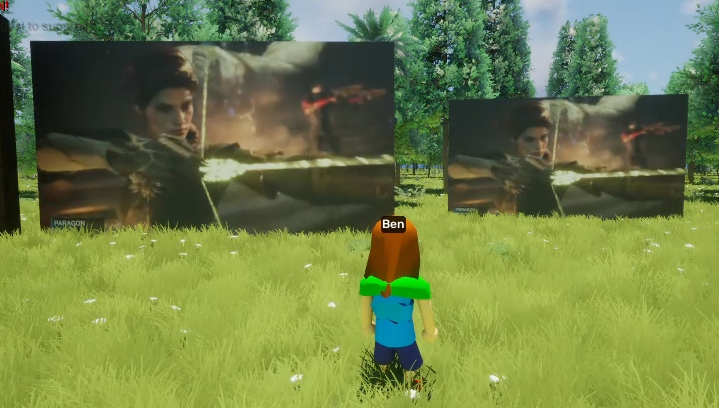
The `BPM_M2Example_SyncedVideoPlayer` acts as a BP-only example asset that can play both Url videos and local videos, pause them, and keep them synced across other users, including late joiners.
{% hint style="warning" %}
Note: Video quality & performance are expected to degrade when streaming more than 1 video via URL at a time
{% endhint %}
## Using the example video player
The `BPM_M2Example_SyncedVideoPlayer` works by replicating the source it needs to play, and the required server timestamps so that late joiners can sync their videos to the right point. Its main usage is via the following server RPCs:
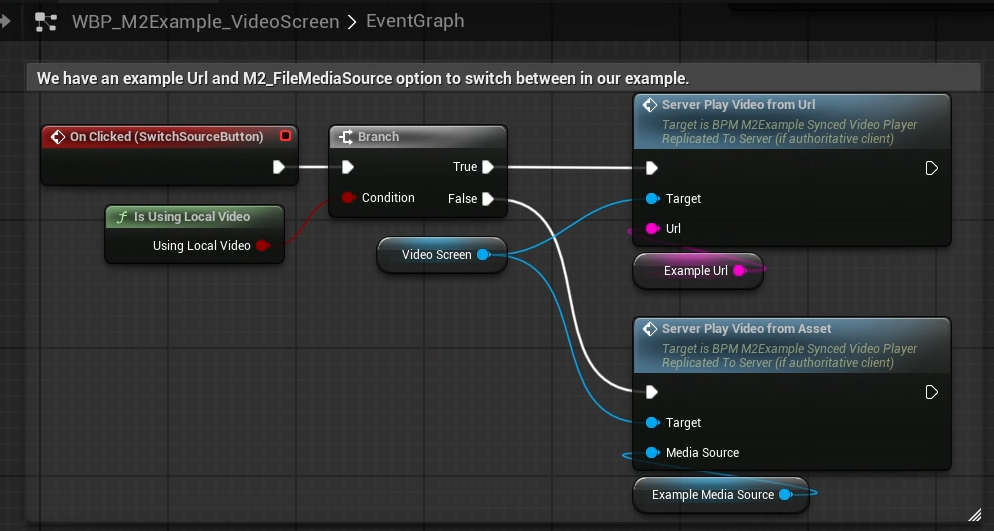
* `Server_PlayerVideoFromUrl`: Provide a url of a video (see [Embedded Unreal Video Player](/creation/unreal-development/features-and-tutorials/video-players/streaming-video-player.md)), and it will play said video
* `Server_PlayVideoFromAsset`: Provide a `M2_FileMediaSource` asset referencing a local video, and it will play said video.
* For setting up a video file, see [#configuring-a-local-video-file-for-playing](#configuring-a-local-video-file-for-playing "mention")
* NOTE: This server RPC only works for stably named objects. This means that assets in your content browser will work fine, but you will not be able to use dynamically constructed objects in this flow.
* `Server_PauseVideo`: Pauses a currently playing video.
* `Server_PlayVideo`: Plays the currently set video. Includes a `Reset` flag which can be used to differentiate between resuming a paused video from its current point, or playing from the beginning.
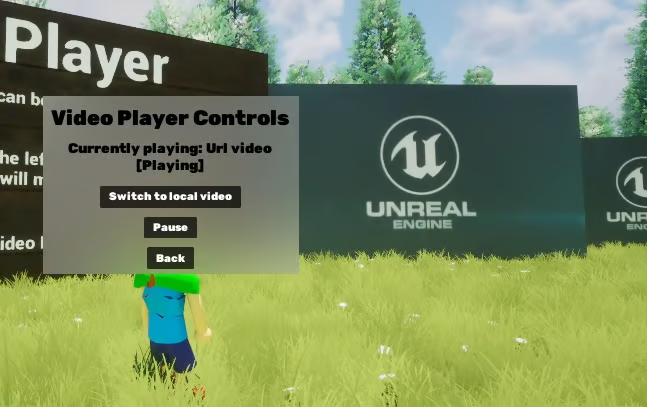
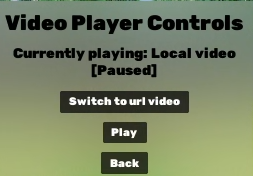
The example also has some "on click" behavior, where it creates a `WBP_M2Example_VideoScreen` widget that can be used to demonstrate the above behavior, i.e. playing either a local video or a Url video, and pausing/resuming it.
If you want a video player with different behavior, feel free to use this asset as a reference.
### A note on how video players work:
To make a video player (synced or otherwise), you need to create a number of relevant assets:
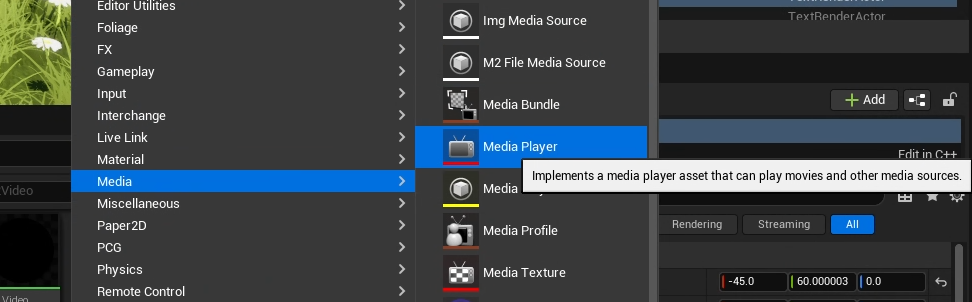
* A `Media Player`: this is an object that takes a video and plays it
* You can assign the media player a video asset via e.g. `OpenSource` or `OpenUrl`.
* A `Media Texture`: this needs to be assigned a `Media Player`, and converts the video feed into a live-updating texture
* A `Material`: if you give a material the above `Media Texture`, and apply this material to an in-game object, e.g. a Plane, the object will "play" the video, by having the video feed as its material.
* A `MediaSoundComponent`: This needs to be assigned a `Media Player`, and it will play the audio feed.
These assets can either be created and configured via the content browser, or created dynamically. The former is likely easier, but has the downside that it becomes more effort to have multiple screens - each unique video player would need its own media player, media texture and material instance.
See `BPM_M2Example_SyncedVideoPlayer::Initialize` for some example logic that dynamically creates these required assets, enabling the same asset to play different videos in different instances.
## Configuring a local video file for playing
1. Ensure your video is the correct format (as required by Unreal's Electra media player)\
\
We test video assets encoded with ffmpeg. To install ffmpeg, you can run a powershell terminal (as Administrator) as run `choco install ffmpeg` (or download from their website).\\
Then, for a given video called `in.mp4` you can run:
> `ffmpeg.exe -i in.mp4 -crf 28 -preset slow out.mp4`
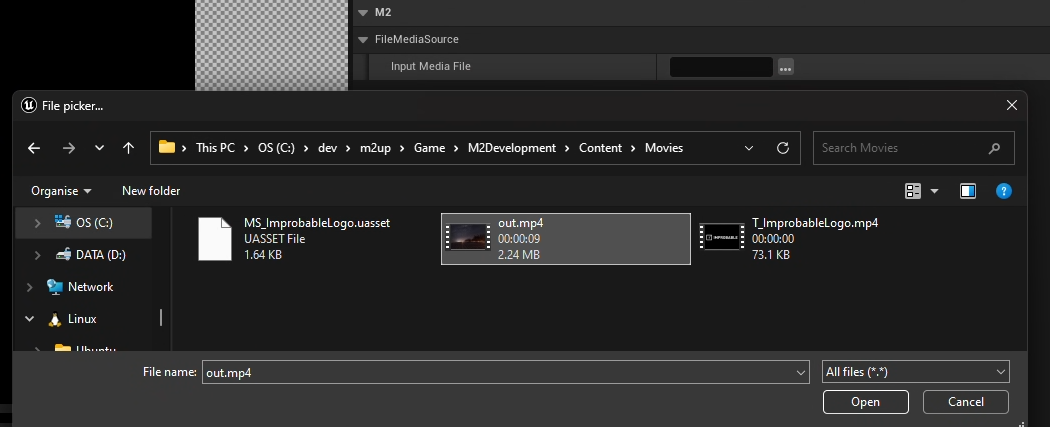
2. Place the encoded `out.mp4` video somewhere in your project or plugin's `Content` folder (e.g. in a `Content/Movies` folder)\\
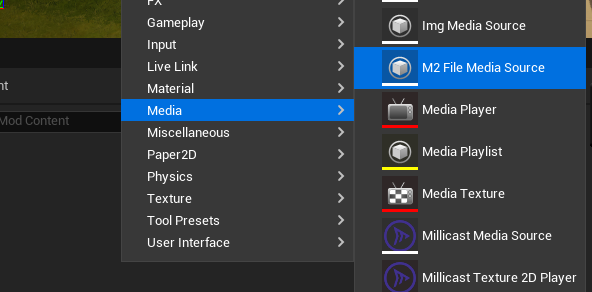
3. Create an `M2 File Media Source` by right-clicking in your Content Browser and selecting it\
(NOTE: We have replaced the native Unreal `File Media Source`, to make the video files accessible in the Morpheus Platform)\\
4. Name your asset whatever you like, e.g. `TestVideo`, then double-click to open it\\
5. In the right-hand panel, select your video asset from the `Content/Movies` folder you put it in:
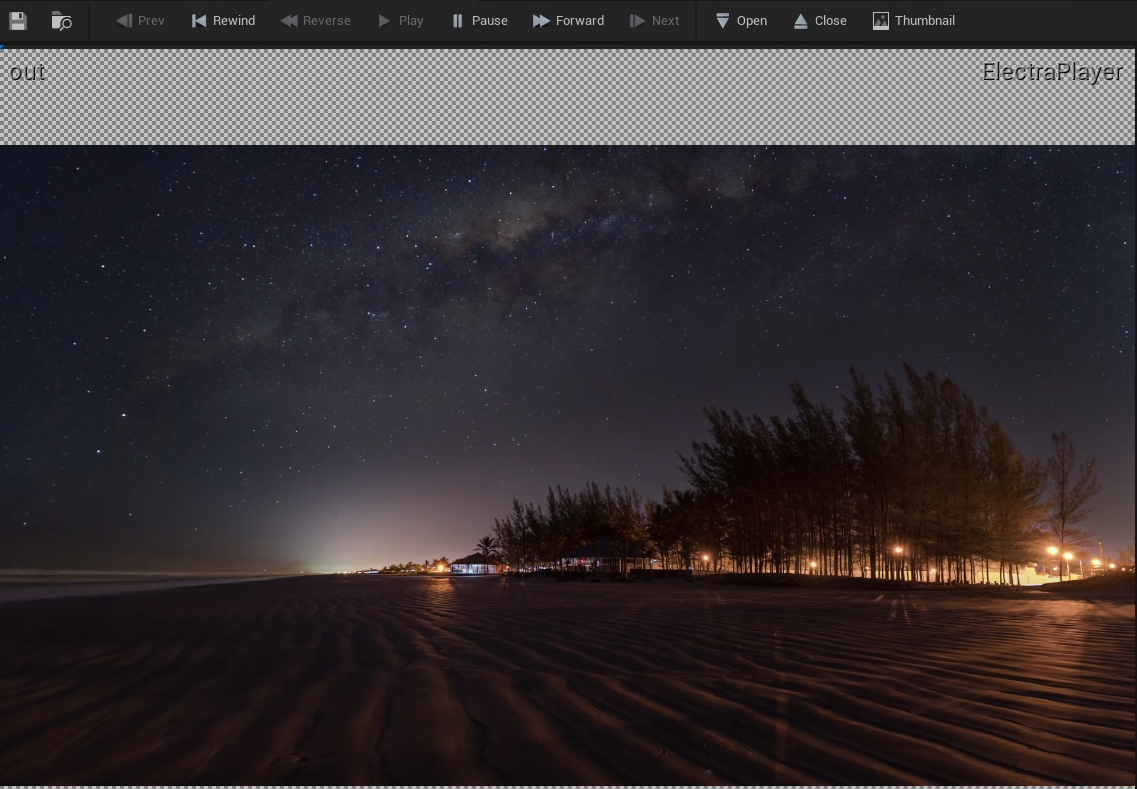
This should result in e.g.:
To test this has all worked, you can click the `Open` button. Your video should then play.
## Mirroring the video feed (BP\_M2Example\_VideoPlayerMirror)
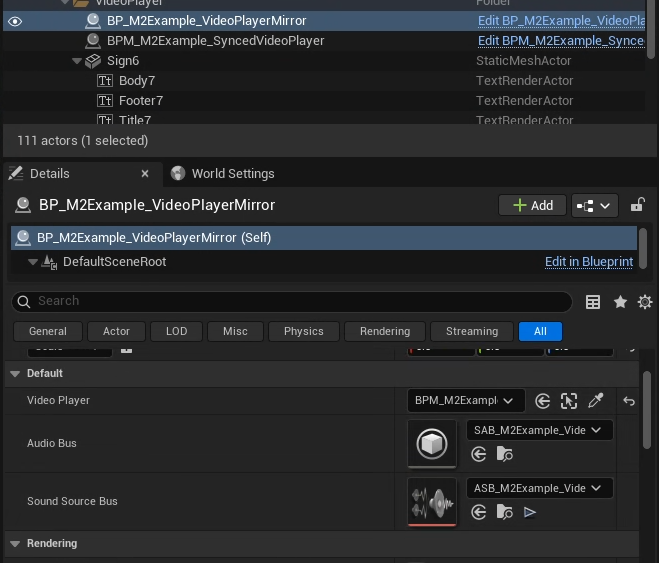
We also have an example `BP_M2Example_VideoPlayerMirror` asset which demonstrates how to "mirror" a screen, playing the exact same feed on an additional asset in-game.
If you set its `VideoPlayer` to be one of the existing `BPM_M2Example_SyncedVideoPlayer` assets in the world, it will copy its material, and so duplicate its screen.
The AudioBus and SoundSourceBus fields will be explained below
### Mirroring the video feed's audio
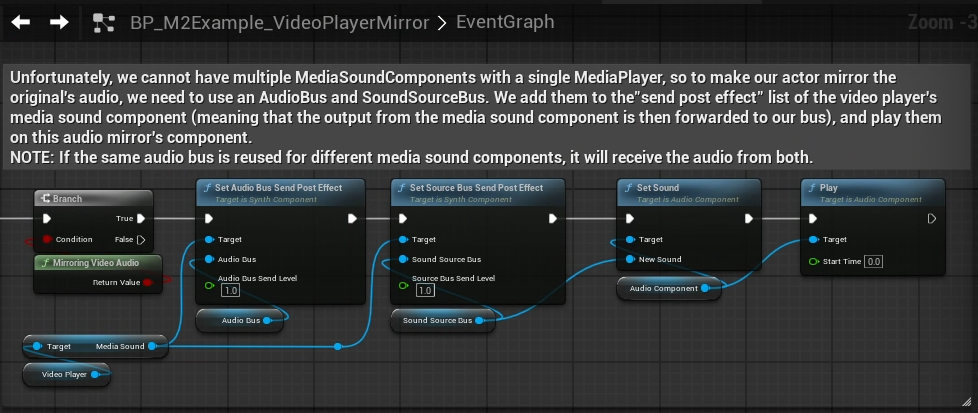
To mirror its audio, the flow is unfortunately more complicated. Unreal does not support having the same `MediaPlayer` playing audio from multiple `MediaSoundComponent`s, so we need to send the audio from the original video player's sound to an audio bus, that we can then play on the mirrors. (multiple audio components can use the same bus).
Our example demonstrates how this can be done. Unfortunately, we cannot create and configure the `AudioBus` and `SoundSourceBus` at runtime via BP like we could with the `MediaPlayer` etc. above, so we need them to be provided per instance. If the same bus is added to multiple media players, the bus will play both media players' audio output. Therefore, we need unique buses per unique media player. In our example, we therefore add a check (`BP_M2Example_VideoPlayerMirror::ValidateVideoScreenMirrors`), to warn if the same bus asset is being added to multiple media players.
{% hint style="info" %}
**NOTE: Virtualization with the SoundSourceBus**
An additional quirk to be aware of is that Unreal's "sound virtualization". Sound Source Buses, like those used in our video player mirror, should have virtualization disabled, because they are procedural audio sources that don't support suspended playback, and must remain active to function correctly.
If you have video screen mirrors that work fine when near to the player start, but stop working in cooked builds when far away from the player, make sure the `VirtualizationMode` is set to `Disabled`.
{% endhint %}